Sharing and access
There are two separate ways to let someone see a visualization, and they answer different questions.
- Public link: anyone holding the link can view it, signed in or not. No list of people.
- Organization access: named colleagues, each with a role. Not available in Personal.
They can be combined, and neither replaces the other.
Public link
From inside a visualization, use Share in the top-right corner of the canvas.
The dialog states the current status:
- Private visualization: “Only users with access can view this visualization.”
- Public visualization: “Anyone with the link can view this visualization.”
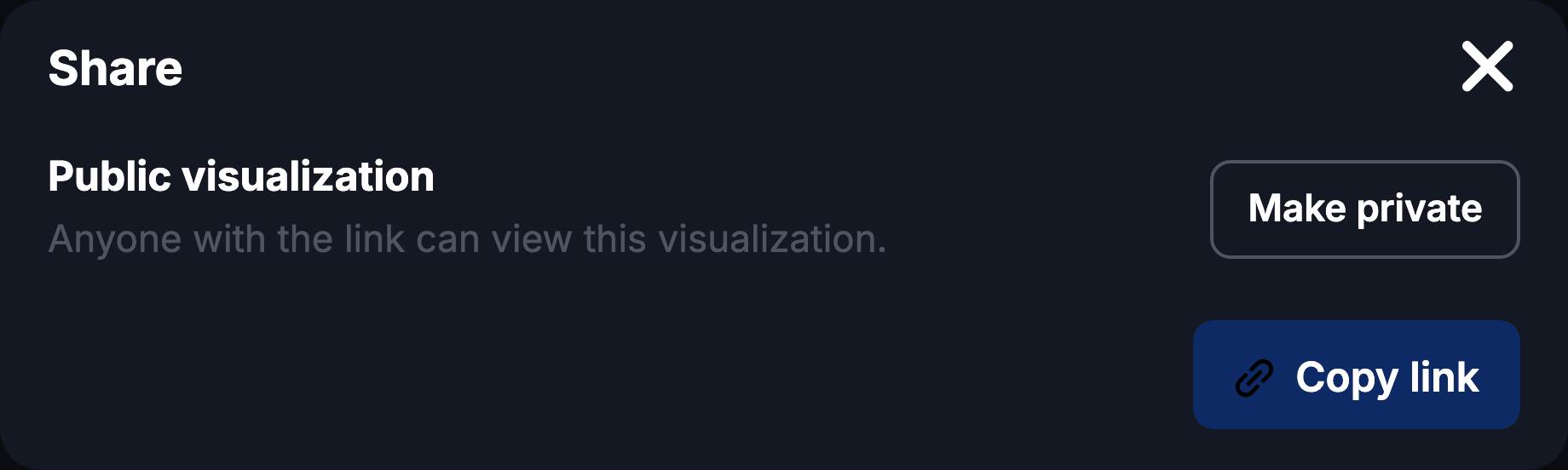
Use Make public / Make private to switch. The button below copies the link; on a private visualization it reads Make public and copy link, because a link nobody can open is not worth copying.
The same toggle is on the Visualizations list, as Make Public / Make Private in a row’s ⋯ menu.
Sharing a graph that has never been saved prompts you to save it first. A visualization needs an address before it can have a link.
Organization access
In an organization, Manage access in a row’s ⋯ menu opens the Share Visualization dialog:
- Whole organization: give every member of the organization the same role at once.
- People with access: who has been added individually, and with what role.
- Invite by email: add someone by address and choose their role.
- Pending invitations: invitations sent but not yet accepted.
Roles
| Role | What it allows |
|---|---|
| View Only | Open and read the visualization. No changes. |
| Can Edit | Open, change and save the visualization. |
| Owner | Everything, including managing who else has access. |
An invitation cannot hand out ownership; Owner is not offered when inviting. Access management is available to the owner; other members see the visualization according to the role they were given.
Manage access does not appear in Personal. A personal visualization has no organization behind it, so there is nobody to grant access to; use the public link instead. Conversely, if your Tracer access comes only through an organization you have no Personal entry at all, so the action is always available to you. See Organizations.
Opening a shared visualization
A shared link opens the graph in read-only mode. It can be read, zoomed and explored, but not changed, and the editing toolbars are not shown.
Two actions are available in the top-right corner:
- Create copy: takes your own editable copy, opened in a new tab. It lands in your current organization and is yours from then on; later changes to the original do not affect it.
- Request demo: shown instead when the viewer has no Tracer access of their own.
The Crypto / USD toggle works in the read-only view as well.
Changes to a shared visualization only reach the people you shared it with once you save. If a colleague reports seeing an older version, the usual reason is an unsaved change on your side.