Comments
Comments and notes are your own annotations on the canvas. They record what you concluded and why: the part of an investigation the blockchain does not hold.
Add one with Create Comment or Create Note in the left tool strip. Both can be dragged anywhere, and connected to any object by dragging their connector onto it.
Types
| Type | Use |
|---|---|
| Comment | General notes. |
| Address | Styled like an address on the canvas. |
| Entity | Styled like an entity. |
| Transaction | Styled like a transaction. |
| Image | An image on the canvas. |
Address, entity and transaction comments match the appearance of the real objects, which is what makes them useful: they represent something Tracer cannot trace (an unsupported chain, a bank transfer, evidence from outside the blockchain) in a form the rest of the graph reads consistently.
Double-click the comment button to choose the type before creating.
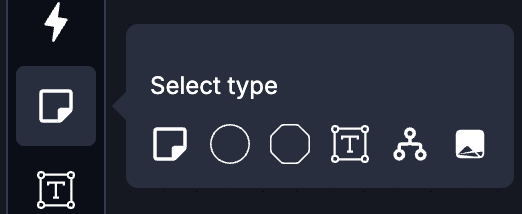
Select Sample to create two address or entity comments and a transaction comment connecting them, already wired up. Faster than building the same shape by hand.
Settings
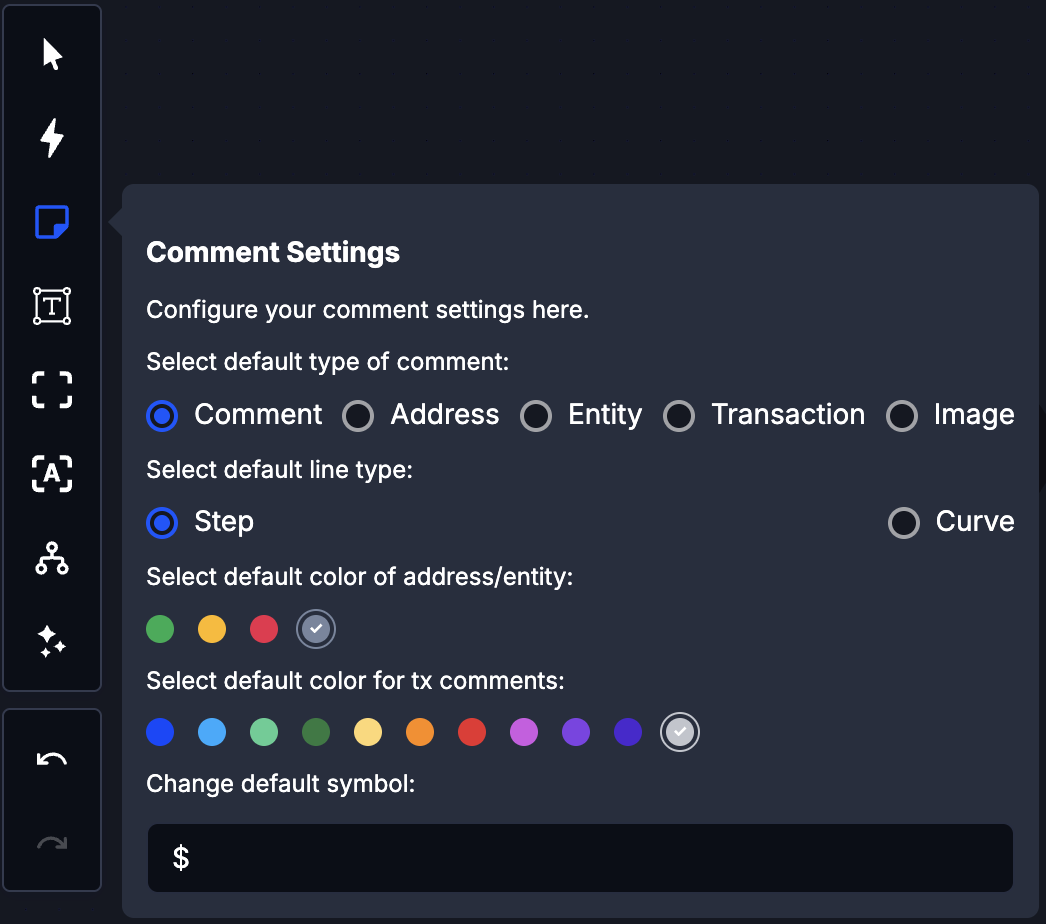
Right-click the comment button and choose Settings to set the defaults for this visualization:
- Default comment type
- Default line type: step or curved
- Default comment colour
- Default transaction comment colour
- Default symbol for transaction comments
Connector lines
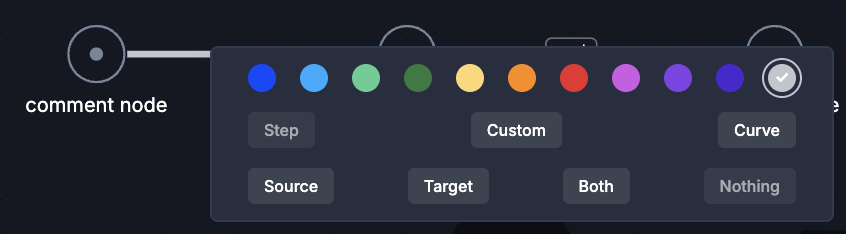
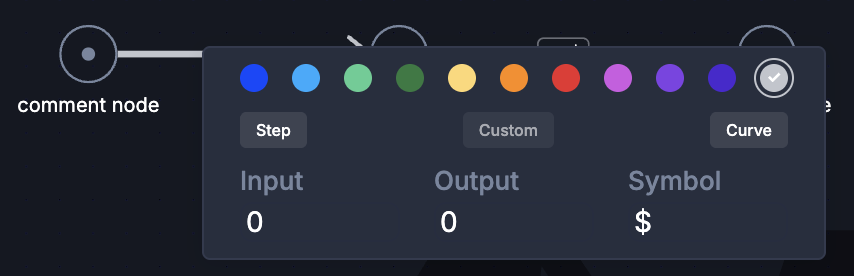
Right-click a line to change its type, colour and arrow. The Custom type is for merged-mode lines, where the arrows and layout are built from the values you enter.
Editing and removing
Click an address, entity or transaction comment to open its editor and change its data. Any comment can be deleted with its delete button.
Comments live in the visualization, so they are saved with it, and they are visible to anyone you share it with. Keep internal remarks out of a graph you intend to hand over.