Address
What you can learn about an address without leaving the canvas, and what the markers on it mean.
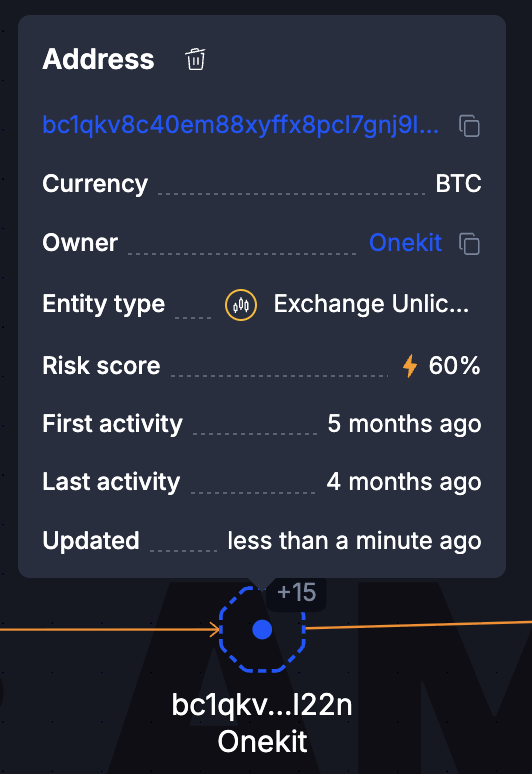
Hover for a summary
Hover an address to see its key facts without opening anything.
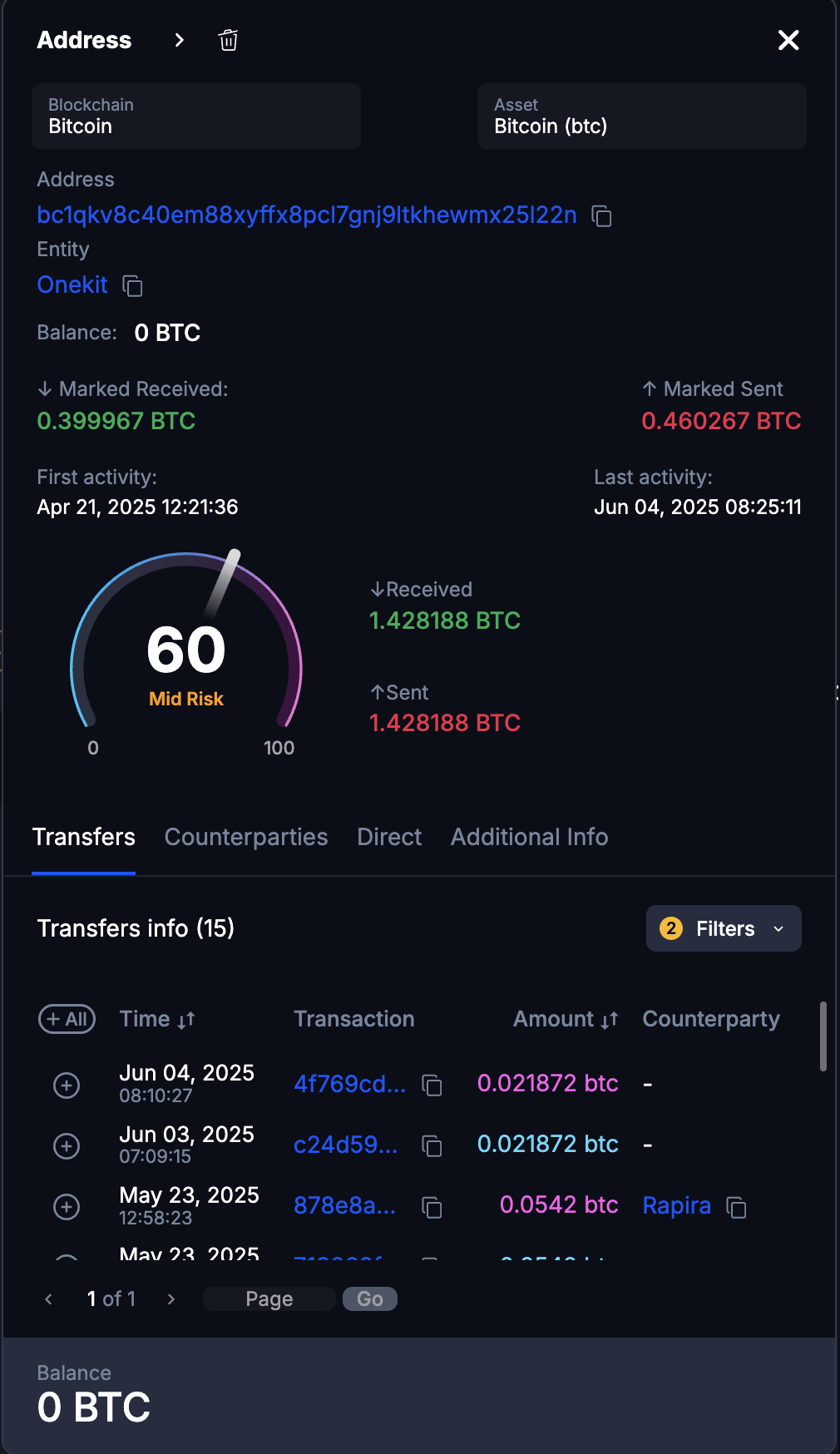
Click for the full view
Click the circle to open the address view: balances, transfers, counterparties, and the actions for that address.
Markers on the circle
A red dot means the address is on the blocklist. The blocklist marker also appears everywhere the address can be copied, so it is hard to use one by accident.
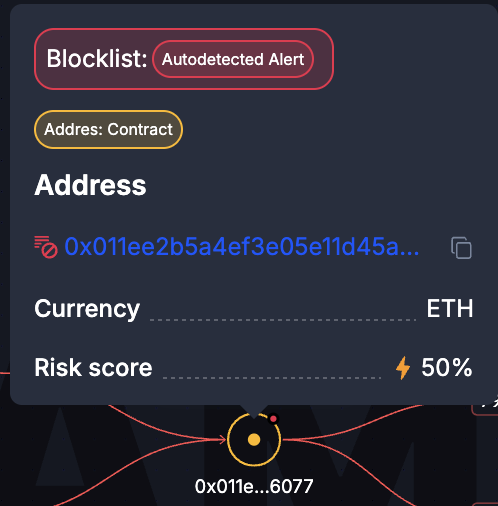
Blocklisted addresses are flagged for a range of reasons, and the marker does not say which. Ask the AMLBot team if the specific reason matters to your case.
A yellow dot means the address is a smart contract. Hovering says so explicitly.
Checking connections
The connections button on hover looks for direct transactions between this address and everything else already on the canvas, and draws any it finds.
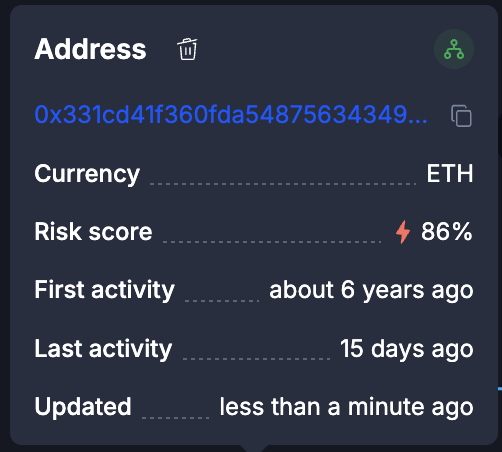
The check runs against the blockchain and asset currently selected for that address; change either in the address view to check a different one.
In an address graph, only addresses that are not part of an entity are checked.
Run this after adding a batch of addresses. Objects added separately arrive unconnected even when they have transacted with each other, and the graph stays misleadingly sparse until something looks for the links.