Address view
Click an address or entity on the canvas to open its details. This is where most of the work of an investigation happens: what the object holds, who it dealt with, and what to add to the graph next.
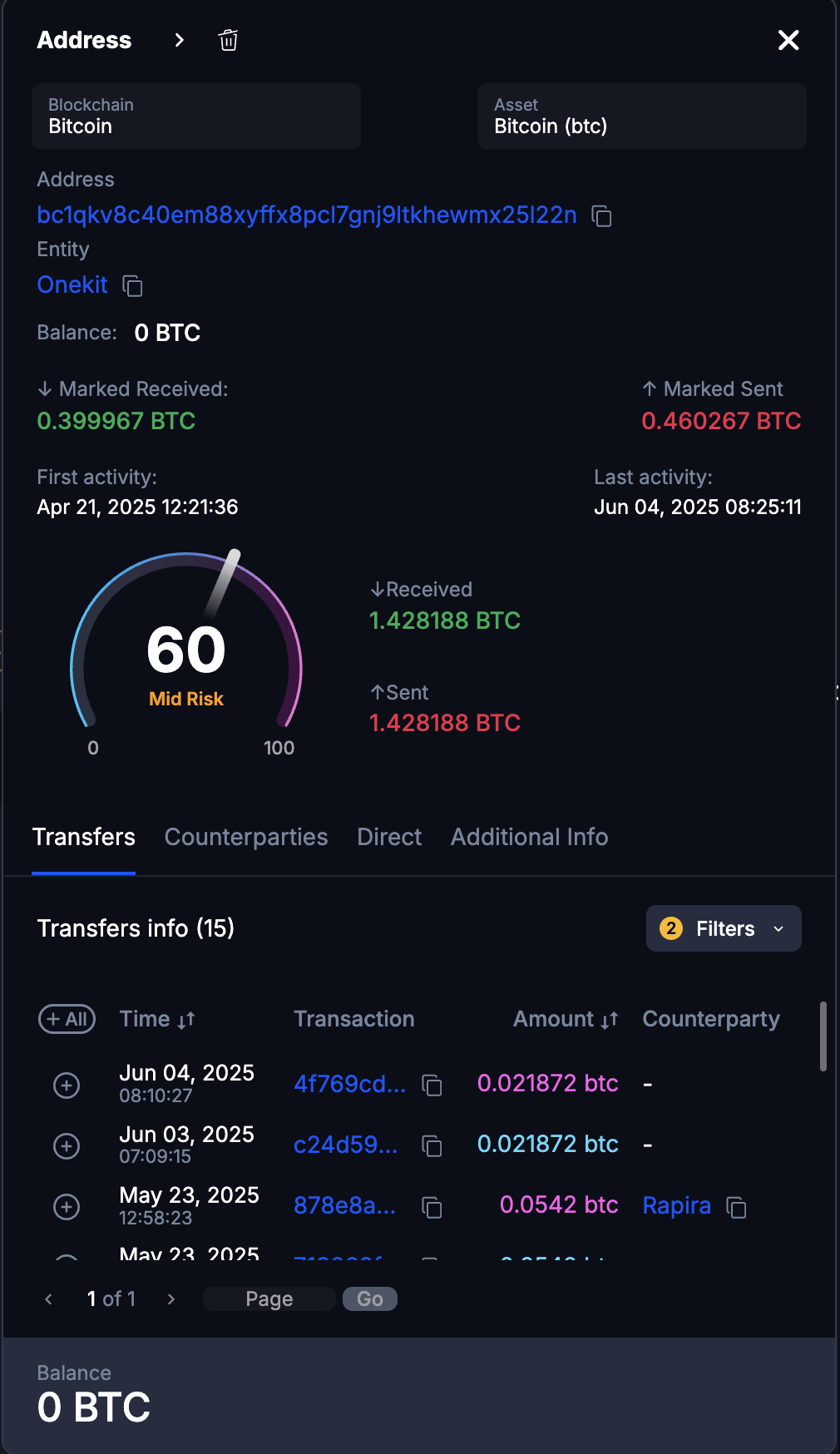
The header
- Blockchain and asset selectors. Switching either reloads the tabs below for that pair.
- Received, sent and current balance. Amounts attributable to flagged transactions are shown separately.
- Risk indicator, from the object’s risk score.
The action buttons collapse behind an arrow; click it to expand them.
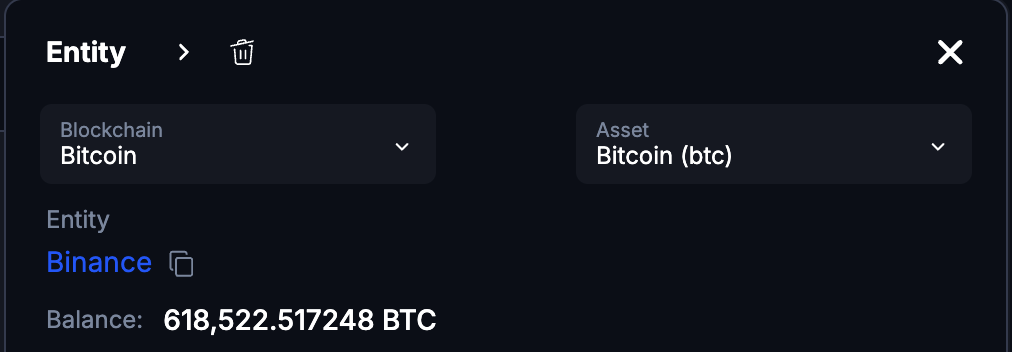

The actions are: export a CSV report, report the address, assign a label or a cluster, and delete the object from the graph.
Tabs
| Tab | What it lists | Shown for |
|---|---|---|
| Transfers | Transaction history. | Everything |
| Counterparties | Who the object transacted with, and the paths between them. | Everything |
| Direct | Direct connections over a period, as a share of total flow. | Everything |
| Additional Info | Extra intelligence on the address. | Addresses, on supported chains |
| Addresses | The addresses belonging to an entity. | Entities only |
| Mentions | Mentions of the object found on the web. | Only when there are any |
On a connection based graph the view opens on Direct rather than Transfers; that graph is built around relationships, so the relationship view is the useful default.
Transfers
Every transaction for this object and the selected asset. Select transactions and click Add to put them on the canvas, or Add all in the column header to add the whole current list. Objects already on the canvas can be removed from here too.
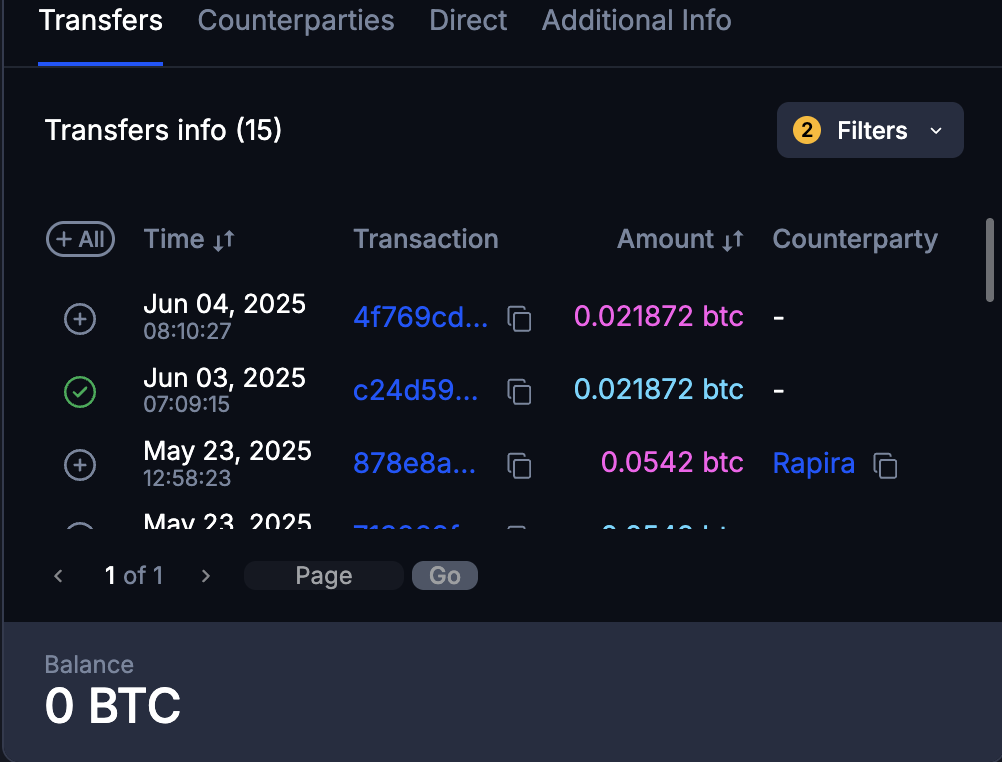
Transactions rejected by the blockchain are marked as such and cannot be added.
Each transaction shows its counterparty where one is a known entity. On Bitcoin, a transaction with many counterparties collapses them into a single marker; hover it to see the full list.
Filter by asset, date and amount.
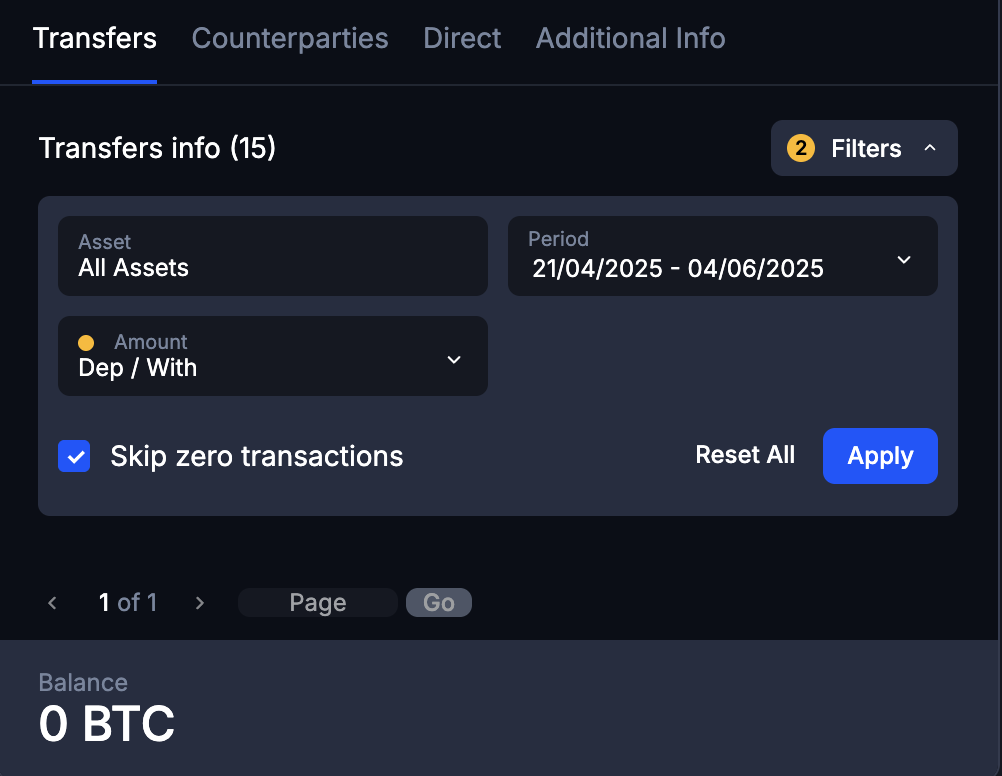
Skip zero transfers is on by default. It hides transactions with no value, and also those with very small ones, so turn it off if dust matters to your case.
Counterparties
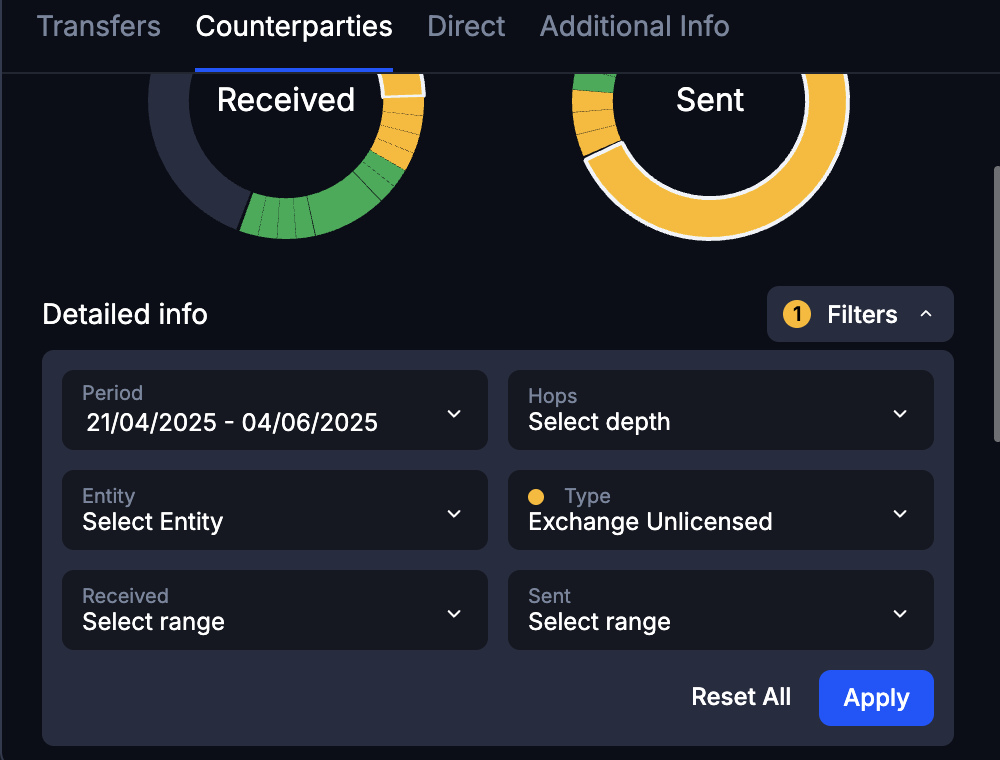
Everything this object is connected to, drawn as a graph. Use the Filters button below it to narrow the result.
Hovering the plus sign next to a path length offers to add the shortest path, or all paths, to the canvas.
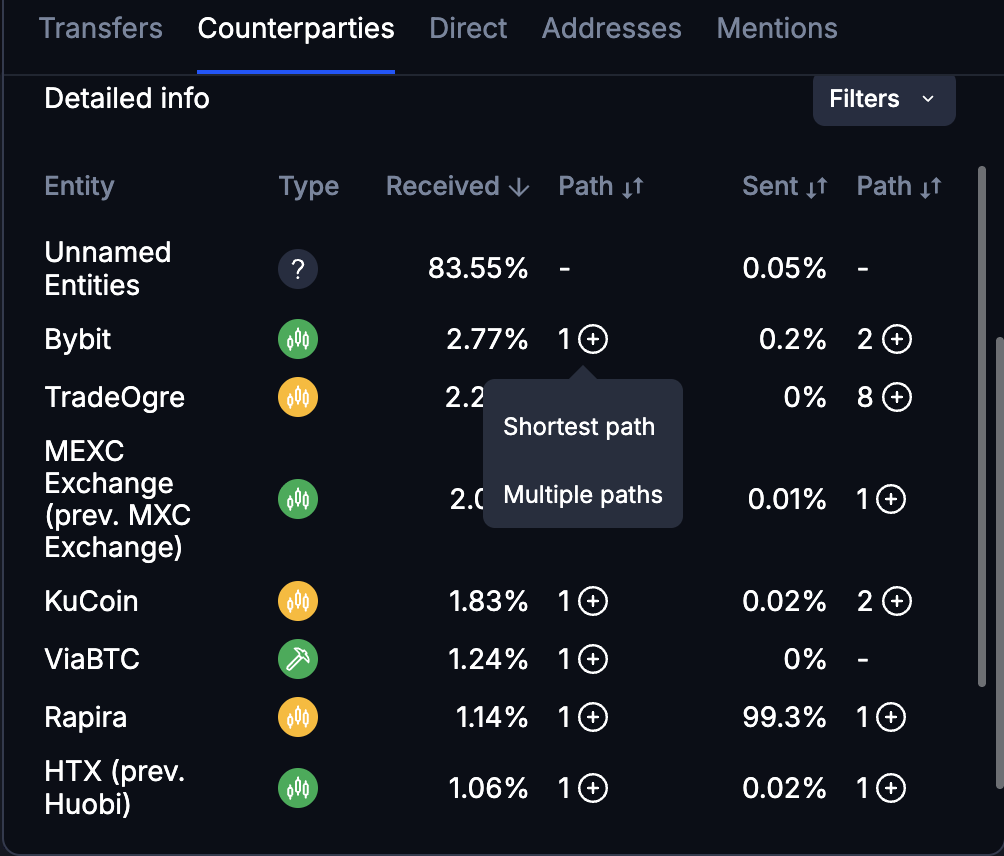
Adding paths is available on entity graphs only.
Direct
Direct connections within a chosen period, for a chosen asset.
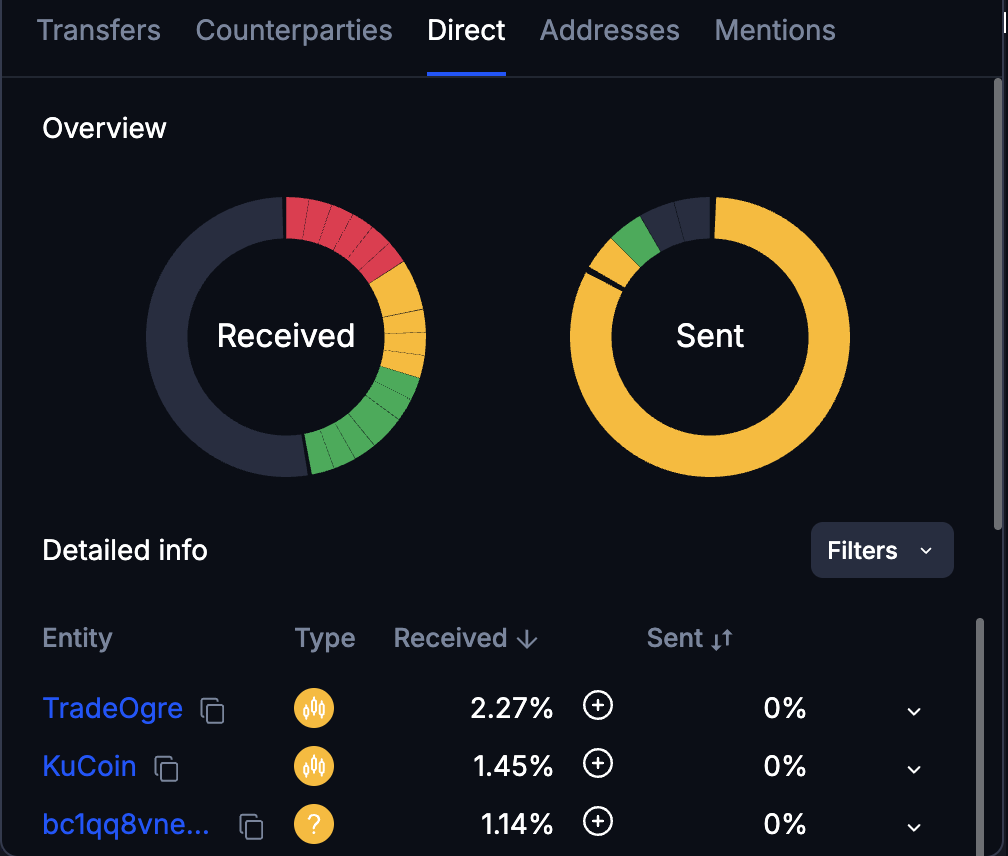
Sent and Received are shown as percentages: each counterparty’s share of all funds in or out for this object. Hover a percentage for the exact amount.
Percentages are what makes this tab worth opening: they say which counterparty actually matters. A counterparty holding 60% of outflow is the thread to follow; one holding 0.3% usually is not.
Additional Info
Extra intelligence on an address, fetched on demand. Click Request to retrieve it.
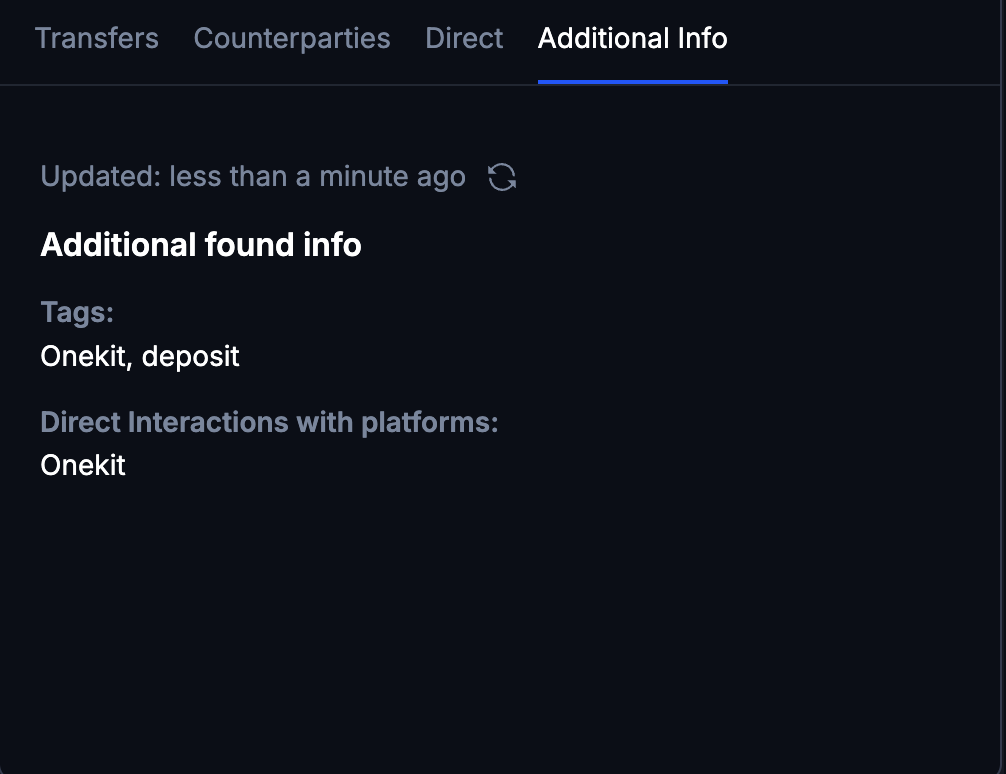
Supported blockchains: Bitcoin, Ethereum, Binance Smart Chain, Tron, Solana, Polygon, Arbitrum, Base, Optimism, Cardano, Ripple and Stellar.
The tab appears for addresses only. An entity, or an address on a chain outside that list, does not get it.
Requesting the information saves the visualization, creating one first if it does not exist yet.
Addresses
For an entity, the addresses that belong to it.
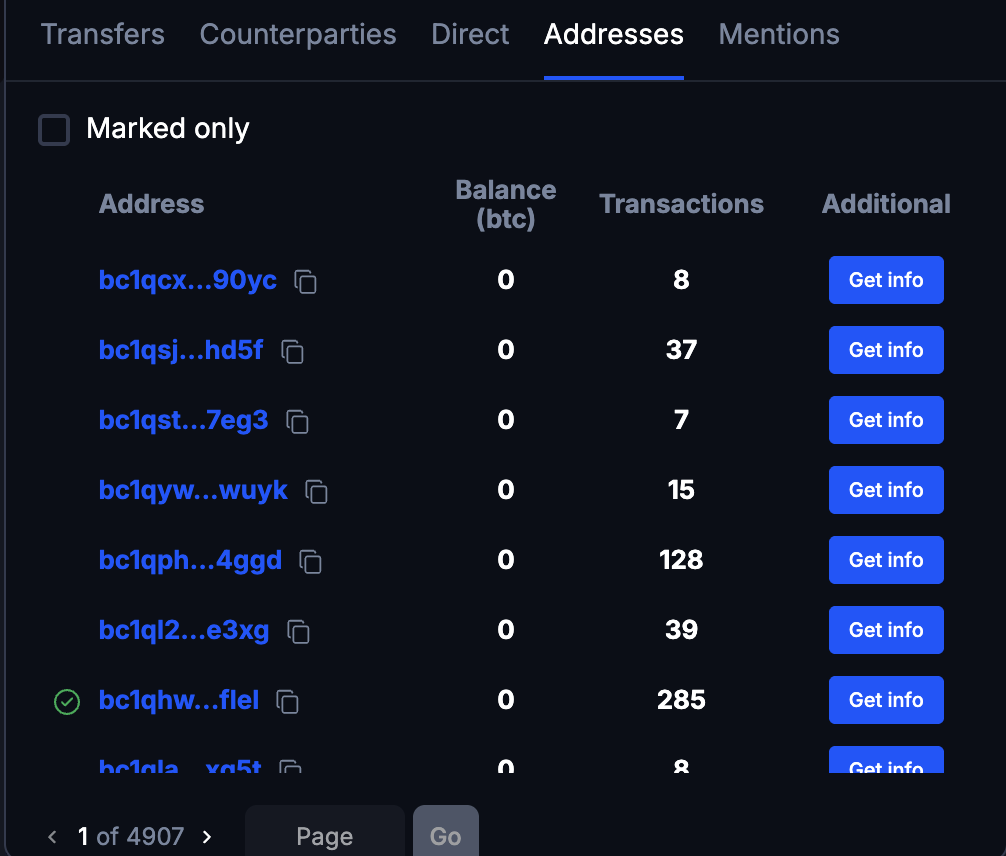
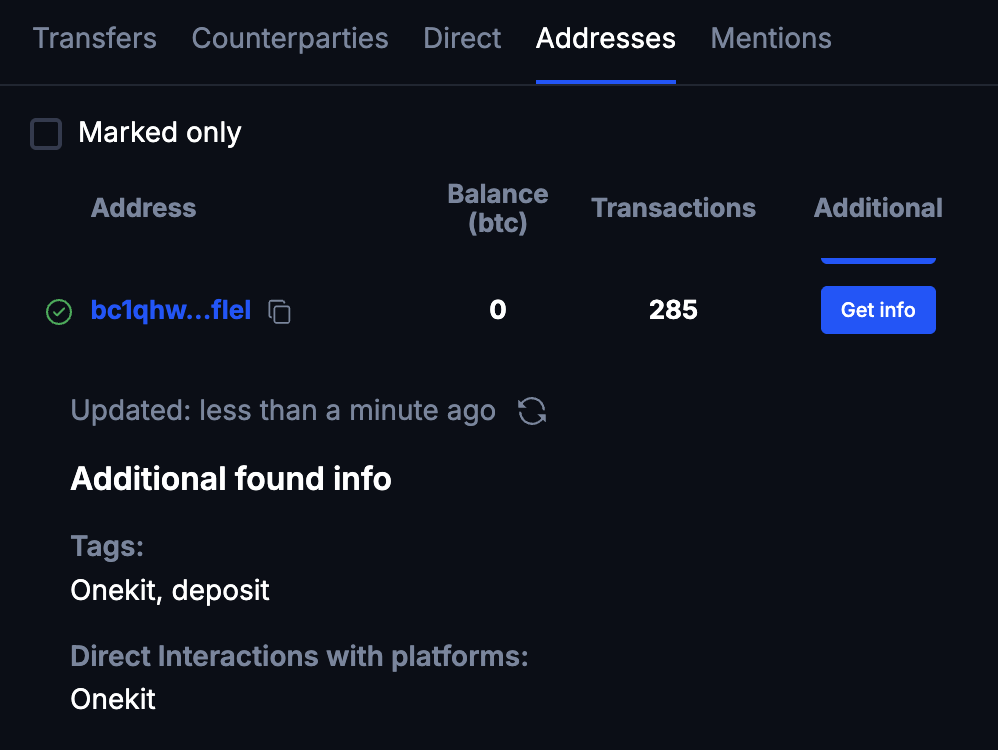
Get info, then Request, retrieves the same intelligence as Additional Info for an individual address.
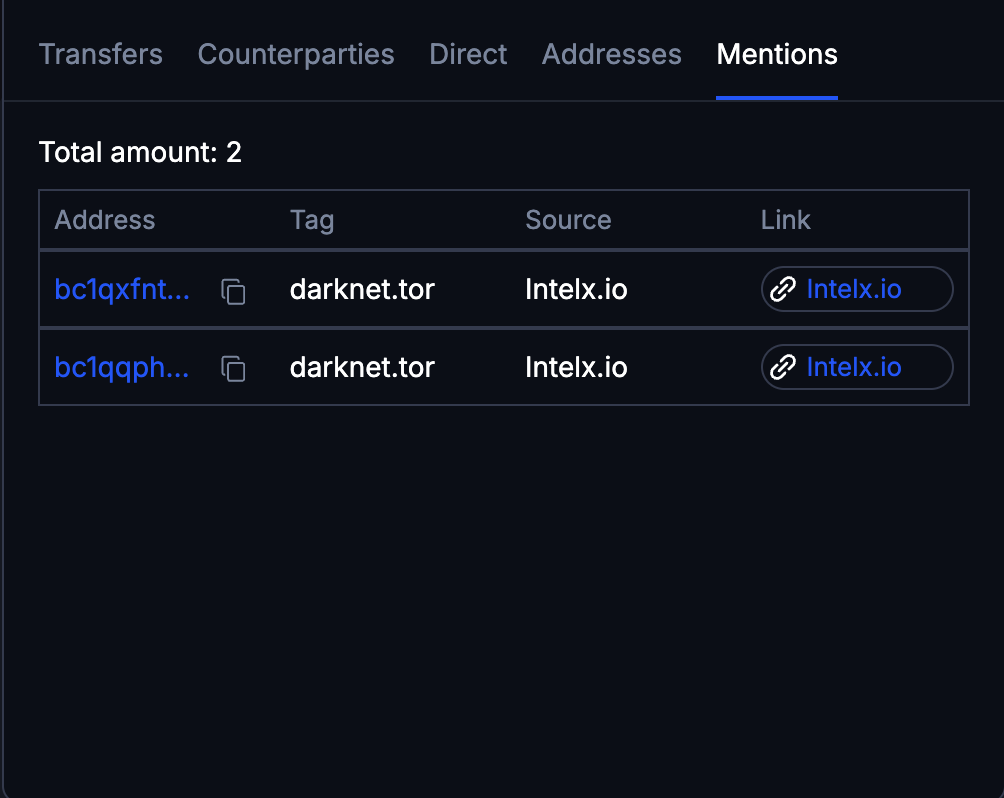
Mentions
References to the address or entity found on the web. The tab only appears when there are some.
Reporting an address
Report an address for suspicious activity, for the AMLBot team to review.
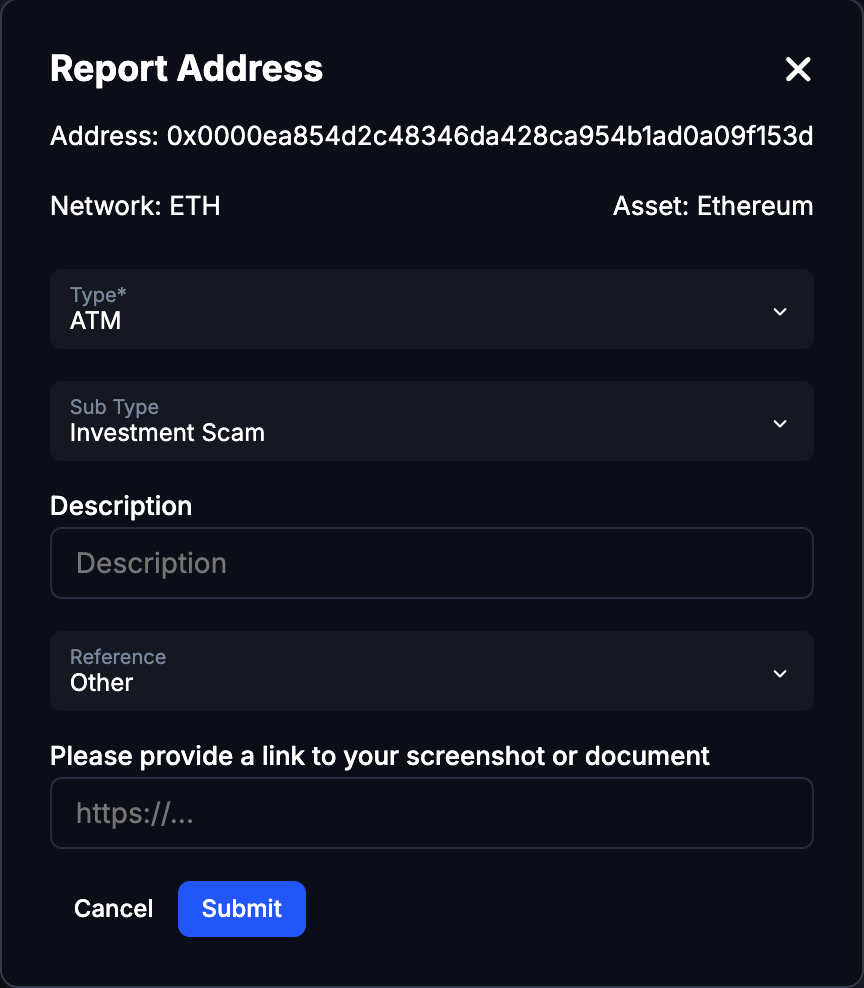
- Address: the address, blockchain and asset, filled in for you.
- Reason: pick one or more.
- Description: optional detail.
- Submit: sends it for review.
Your last selected reasons are remembered for the rest of the visualization, so reporting several related addresses does not mean re-picking them each time.