Toolbars
The visualization canvas has four groups of controls: a title bar and a tool strip on the left, the currency toggle and Share on the right, and the zoom controls at the bottom.
Left tool strip
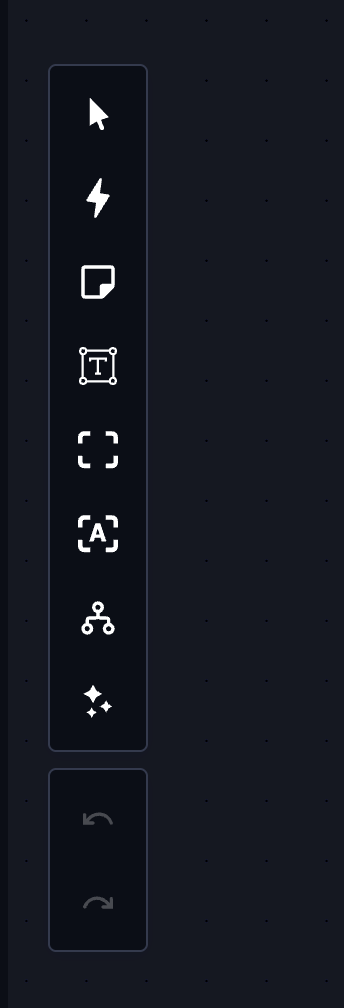
| Tool | What it does |
|---|---|
| Readonly Mode | Locks the canvas so objects cannot be moved or deleted. Drag to pan instead. |
| Manual Mode | New objects are placed next to whatever they connect to. With it off, Tracer positions them to avoid overlap. |
| Create Comment | Adds a comment. Right-click for settings, double-click to pick the type first. See Comments. |
| Create Note | Adds a note. |
| Fit View | Zooms so the whole graph fits on screen. |
| Auto layout | Re-arranges the entire graph automatically. |
| Merged Txs Mode | Combines every transaction between the same two objects into one line carrying the total. |
| Fix Position | Pins the selected object so later additions do not push it around. |
| Show Date | Shows the date on transaction connections. |
| Undo / Redo | Step back and forward. Greyed out when there is nothing to step to. |
Merged Txs Mode is not shown on a graph built in connection based mode. Those graphs already draw one line per relationship, so there is nothing left to merge.
Title bar

- Title: click to rename the visualization.
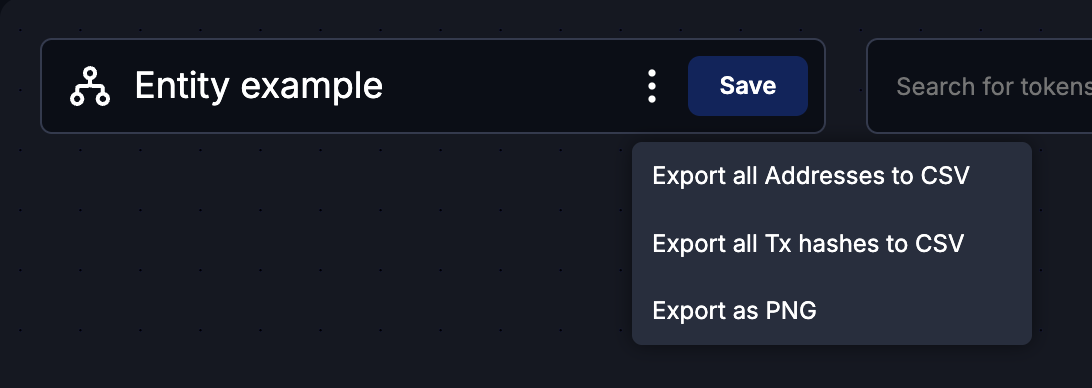
- ⋯ menu: the export options, below.
- Save: writes your changes. Tracer also saves automatically about once a minute.
- Search: add an address, transaction or entity to the canvas, singly or in a batch. See Search.
Save before closing the tab. Auto-save runs on a timer, not on every change, so the last minute of work is the part at risk.
Currency and Share
Top-right of the canvas:
- Crypto / USD: switches displayed amounts between the asset’s own units and US dollars. Not shown on connection based graphs.
- Share: public link and access, covered in Sharing and access.
On a shared read-only graph this corner holds Create copy instead of Share.
Zoom controls
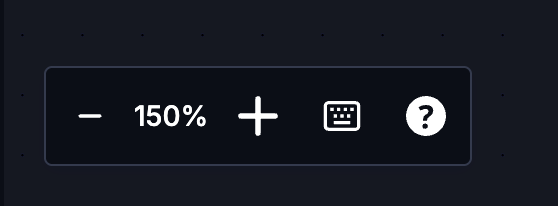
- − and + zoom out and in, and grey out at the limits.
- The percentage between them shows the current zoom. Click it to return to 100%.
- Help lists the keyboard shortcuts. Escape closes any open panel.
- Icons explains what each icon on the canvas means.
Export
From the ⋯ menu in the title bar:
- Export all Addresses to CSV
- Export all Tx hashes to CSV
- Export as PNG: the canvas as an image, for a report or a slide.
Per-transaction lists have their own exports: the Connections view exports the transactions between two objects, capped at 1000 rows.
Last updated on