Labels
A label is your own name for an address or entity. Once set, the graph shows the label instead of the address, in blue.
Labels are stored per account and apply everywhere: label an address in one visualization and it is labelled in all of them.
Creating a label
- Click a node on the canvas to open its details.
- Click Add Label.
- Enter a name and save.

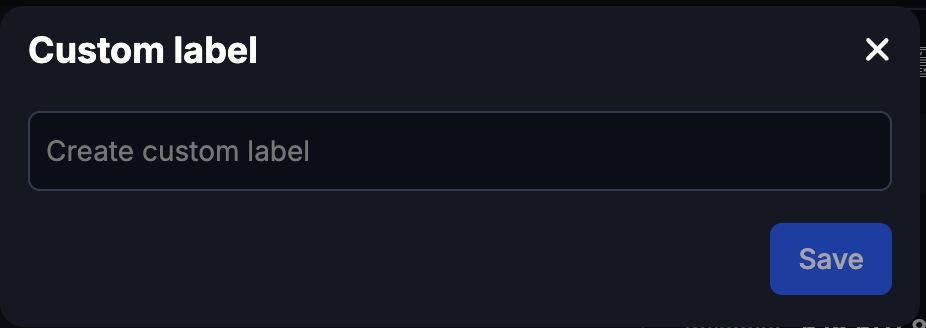
Name labels for what they mean to the investigation: “Victim wallet”, “Exchange deposit, case 4471”, not for what they are. “ETH address 3” is a label you will not recognise next month.
Managing labels
Open the label management page from the account menu in the top-right corner of the header: click your initials, then Labels.
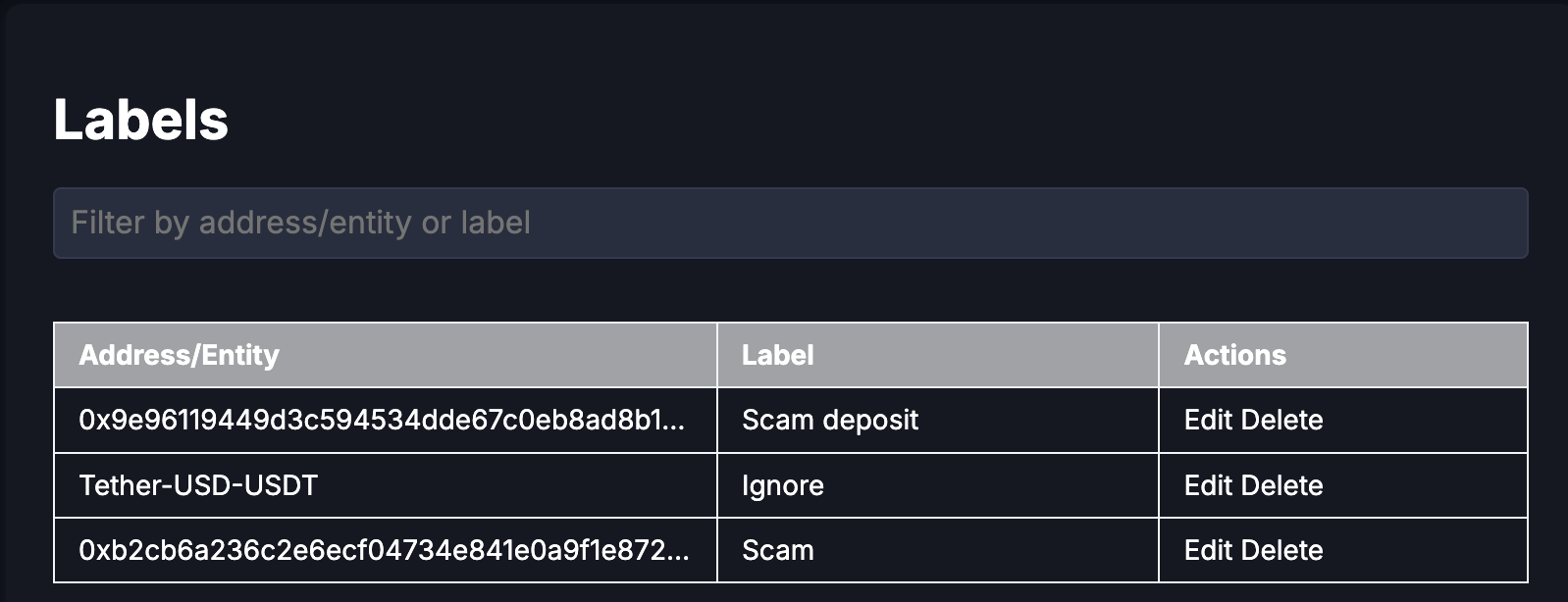
From there you can:
- See every label you have created.
- Edit a label’s name.
- Delete a label, removing it from every node it was applied to.
- Filter by address, entity or label name.
When changes appear
Editing or deleting a label does not rewrite visualizations that are already open. The change is picked up the next time a visualization is opened.
On a shared visualization, other people see the updated label only after you save the visualization again. Renaming a label is not by itself a change they receive.