Search
The search box in the title bar adds objects to the canvas. Enter an address, a transaction hash, or a business name.
Suggestions appear as you type. Pick one to add it.
In an address graph, search covers addresses and transactions. Entity names are offered on entity graphs, where they have something to map onto.
Transactions
Enter a transaction hash and pick it from the results to place it on the canvas. A transaction that moved several tokens, or took several steps, asks which of them to add.
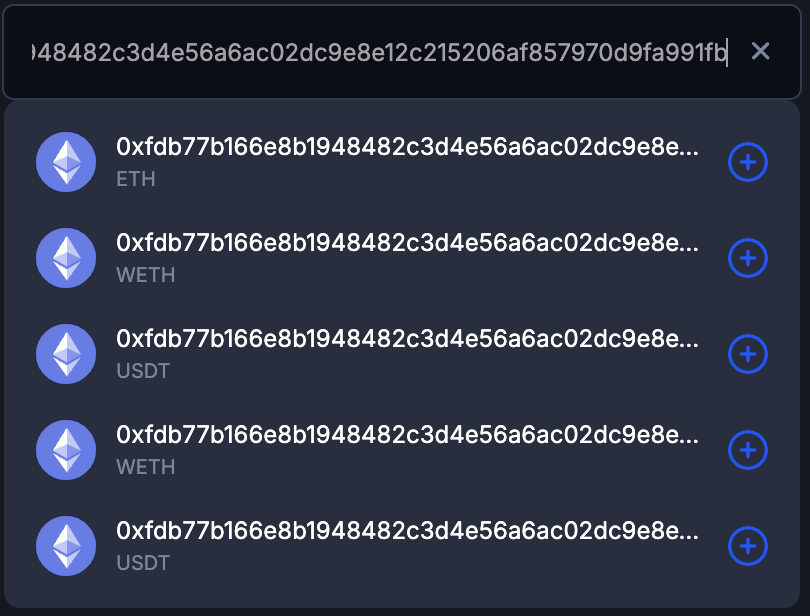
Already on the canvas
Results that are already on the canvas are highlighted. Clicking one zooms to it and opens its details instead of adding it a second time.
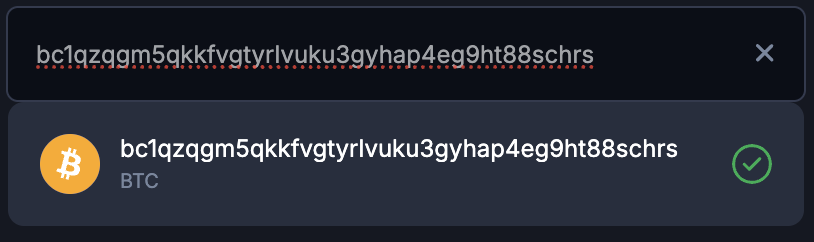
This is the quickest way to find your way back to a specific address on a large graph, faster than hunting for it visually.
Adding in bulk
Open the batch dialog from the search box to add many objects at once.
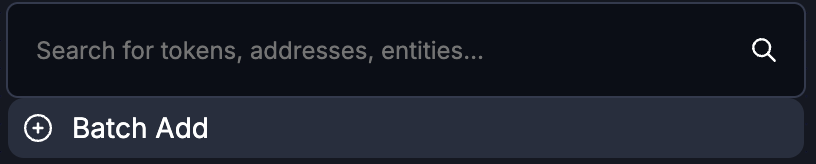
Addresses
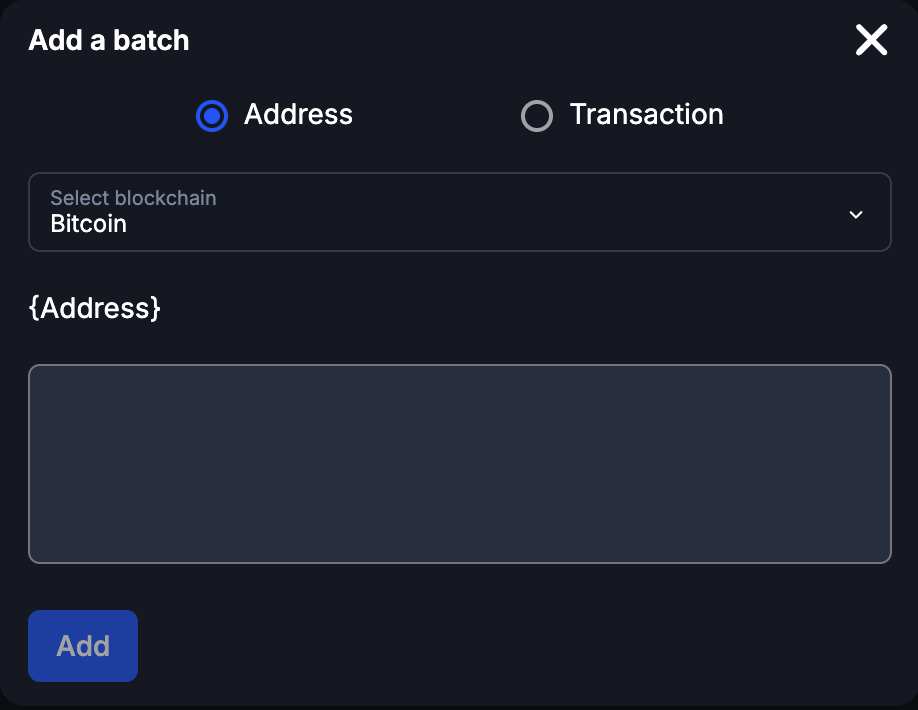
Enter the addresses separated by commas or spaces, choose the blockchain, and click Add.
Transactions
Enter the hashes separated by commas or spaces, choose the blockchain and the asset, and click Add.
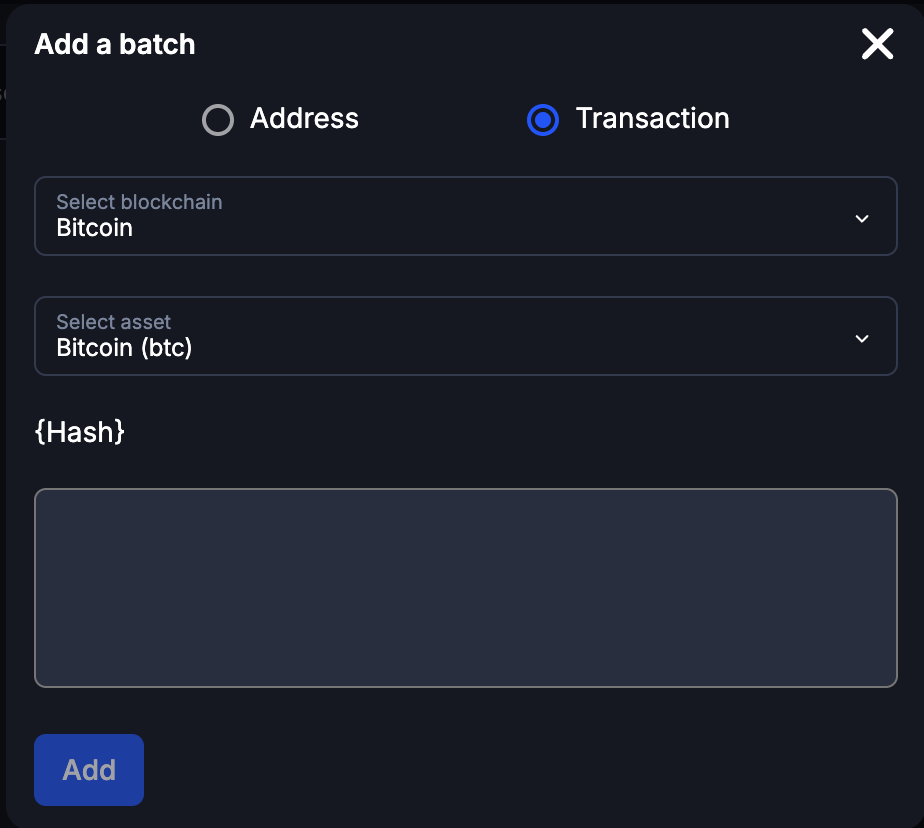
Keep a batch under 100 items. Larger batches are slow and make the graph hard to read; add them in groups instead.
Results
After a batch, Tracer reports what happened to each item:
- Success: added to the canvas.
- Already added: was on the canvas before.
- Error: could not be added.
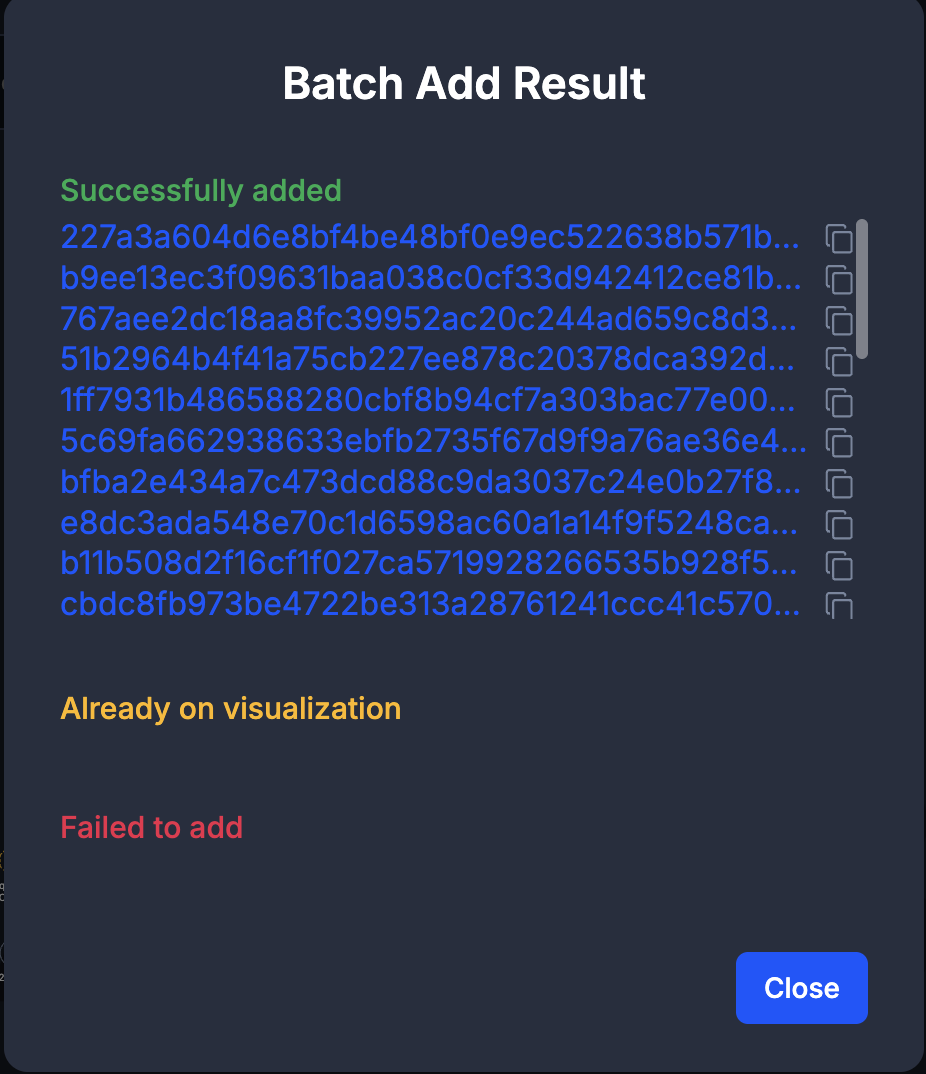
Run Fit View afterwards; a batch usually lands outside the current viewport.