History
The History bookmark is a timeline of what was done in this visualization, and when. It answers “how did the graph get into this state”. That is useful when returning to a case after a break, and when several people work on the same graph.
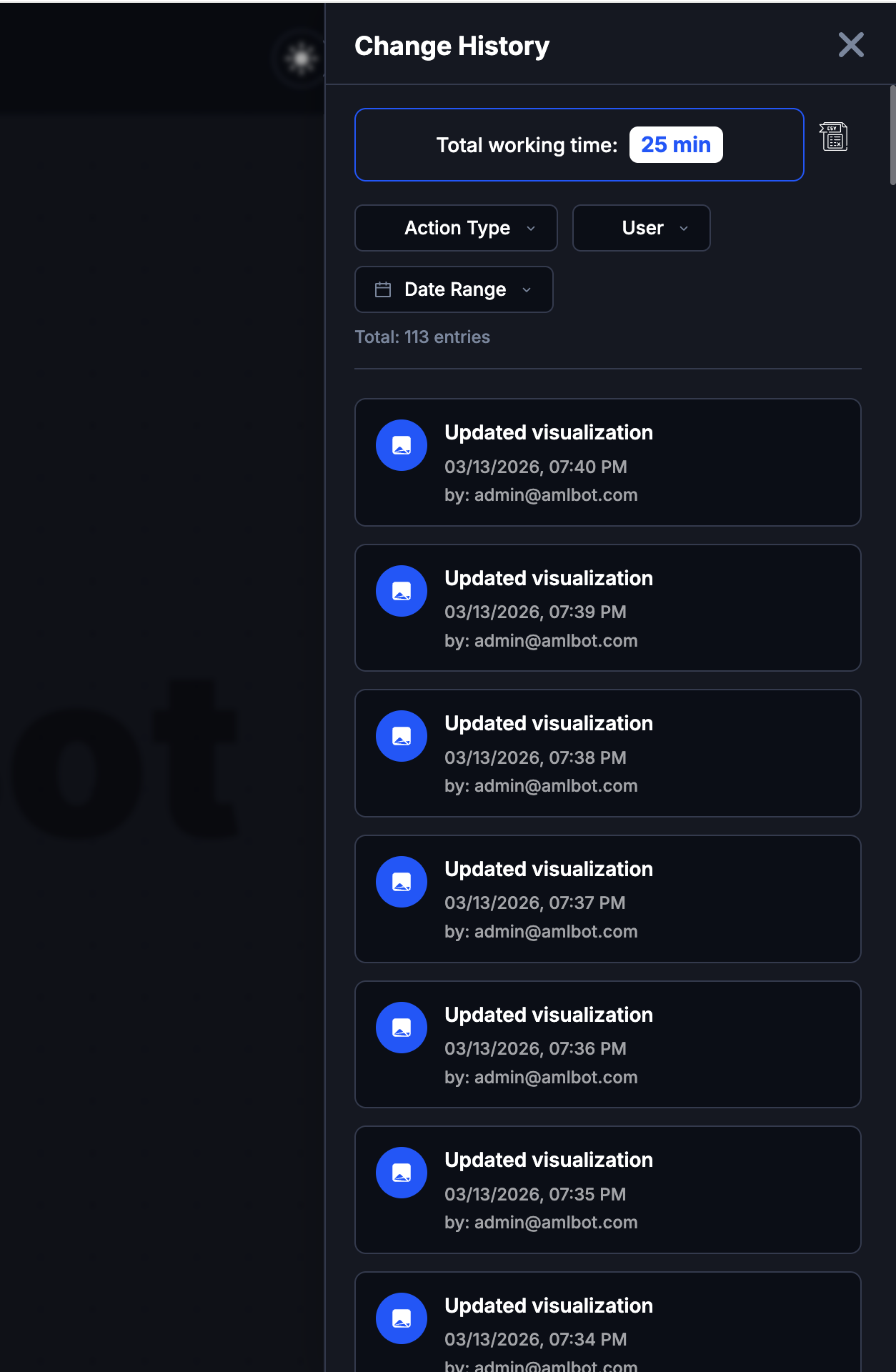
Open it from the History tab on the edge of the screen.
What you can do
- Review recent actions in order.
- Filter by type of event, by user, or by date range.
- Search for a specific action by keyword.
- Create a report from the recorded activity.
History is a record, not an undo stack. To step back through your own recent changes, use Undo / Redo in the left tool strip.
Last updated on