AI Trace
AI Trace builds a visualization for you. You give it transaction hashes; it follows the funds and returns a finished graph, rather than you expanding the graph node by node.
Start it with the AI Trace button at the top of the Visualizations page.
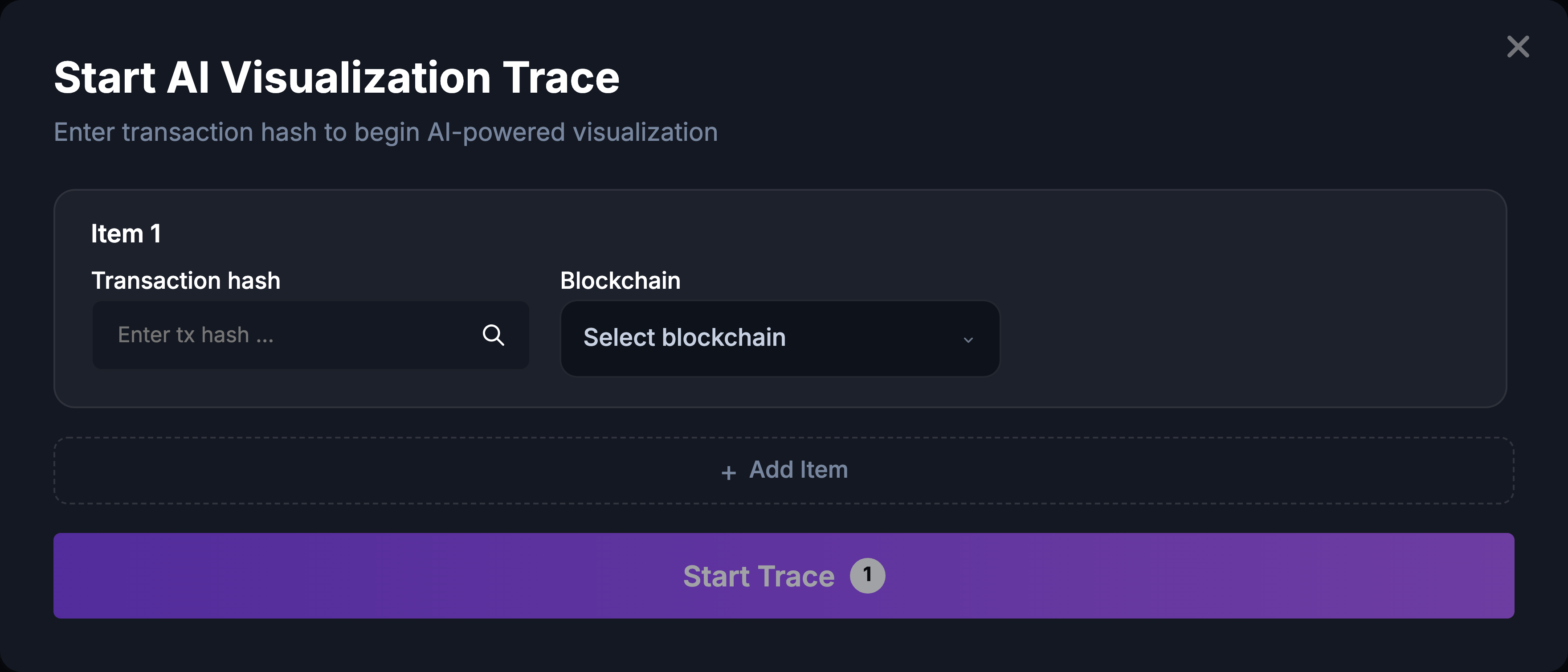
Running a trace
- Transaction hash: paste the hash of the transaction to start from.
- Blockchain: pick the chain the transaction is on.
- Asset: pick the asset. The list is filled in once a blockchain is chosen.
- Repeat for further transactions with Add Item, or remove a row with the x next to it.
- Start Trace. The badge on the button shows how many items are queued.
All three fields are required for every item; the button stays disabled until each row is complete.
While it runs
A trace is not instant. The dialog reports its progress:
- Starting trace…
- Processing trace… This may take a few minutes.
- Trace completed! Redirecting…
When it finishes, Tracer opens the visualization it built. It is saved automatically, so it is already in your list, under the organization you are in.
Keep the dialog open until the trace finishes. Progress is reported to this page, and closing it means losing sight of the result.
Supported blockchains
AI Trace covers the same chains as the rest of Tracer: Bitcoin, Ethereum, Binance Smart Chain, Tron, Solana, Ripple, Litecoin, Ethereum Classic, Polygon, Arbitrum, Base, Optimism and Cardano. See Supported blockchains.
When it does not work
The dialog reports the reason in place, below the items. The usual causes are a hash that does not exist on the chosen chain, and a mismatch between the hash and the blockchain selected for it; a valid hash on the wrong chain looks the same as a missing one.
After the trace
The result is an ordinary visualization. Everything else in this wiki applies to it: add more objects from the search, open the address and transaction views, annotate it with comments, and share it.